
Merge Fields
Learn how to map Google Form responses to placeholders in your templates and enable dynamic images or QR codes.
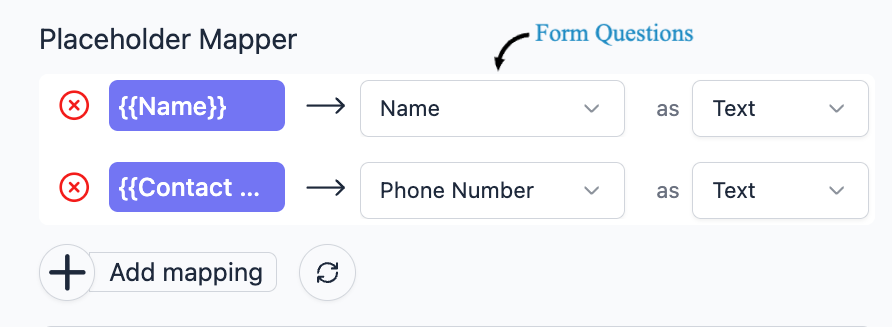
Mapping Form Fields to Placeholders
- All placeholders are auto-detected from your template.
- Each tag (e.g.
{{Full Name}},{{Email}}) maps to a form question. - If no match is found, placeholders can be manually mapped.
Mapping System & Quiz Fields
- Quiz Scores:
{{Reached Score}},{{Reached Percentage}} - Timestamps:
{{Timestamp}} - Submission ID:
{{Document ID}}
Syncing Your Mapping
If you add a {{tag}} while the sidebar is open, it will not appear automatically.
Click the Refresh / Sync icon to re-scan the template without losing existing mappings.
Merging Images from File Upload Questions
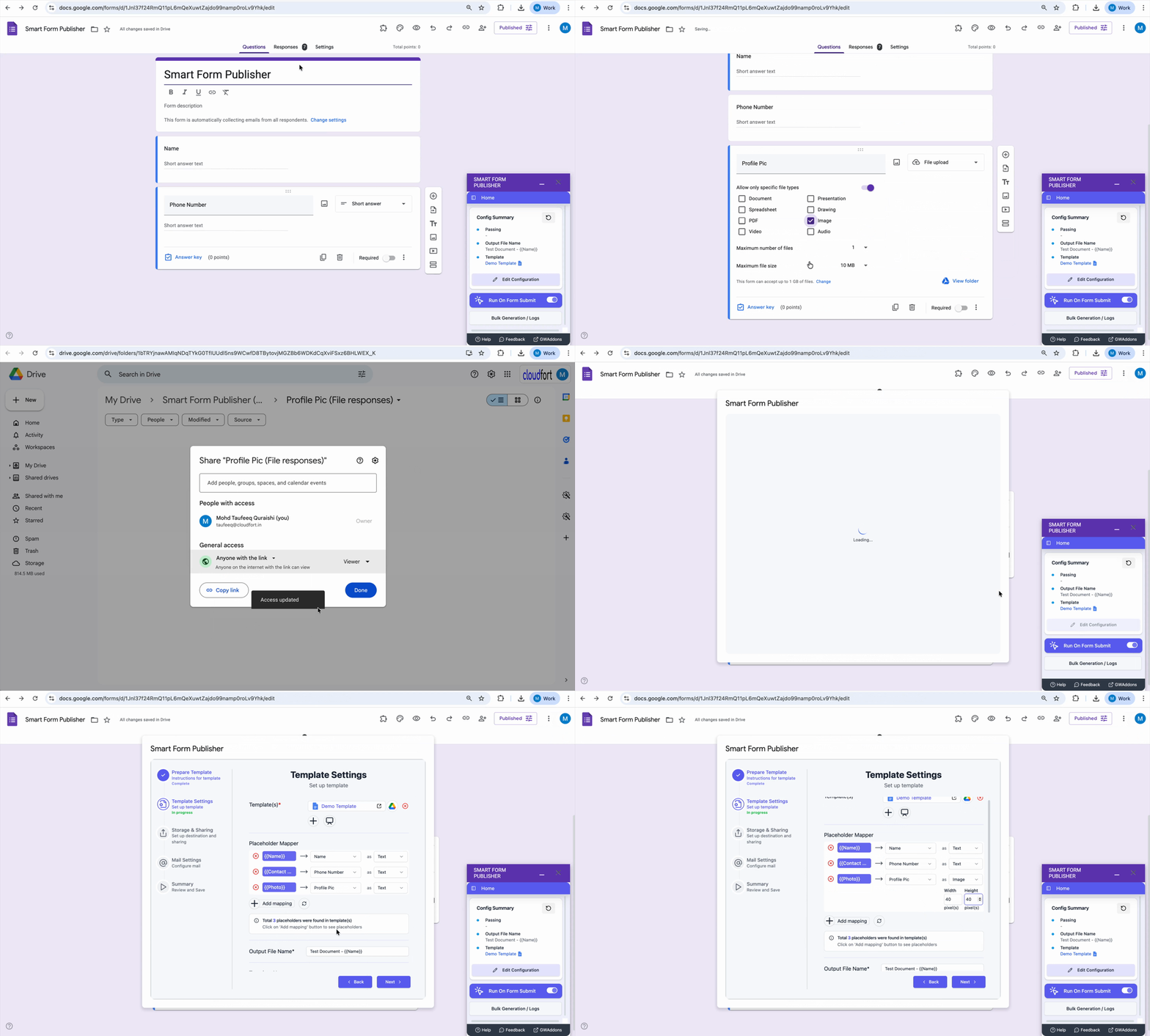
- Add a File Upload question to your form.
- Map it to an image placeholder like
{{Photo}}. - Images are automatically scaled to fit the placeholder.
🔐 Uploaded files must have “Anyone with the link can view” access.
Advanced Image Formatting
- Docs: Place tags inside table cells to control size.
- Slides: Place tags in text boxes to preserve aspect ratio.
QR Code Generation
- Select a field to encode.
- Insert
{{QR}}in your template. - A unique QR is generated per document.
QR Code Customization
- Combine static + dynamic values:
https://mysite.com/verify?id={{Document ID}} - QR size is controlled by the font size of the
{{QR}}tag.
Handling Checkbox Fields
Multiple checkbox selections are merged as a comma-separated list.
💡 Ensure enough space in your template to accommodate long values.
Pro Tip
{{Full Name}}{{Date}}{{Photo}}{{QR}}
Text, images, and QR codes can be merged together — fully automated.
Proper Merge Field configuration ensures accurate, personalized, and verifiable documents every time.